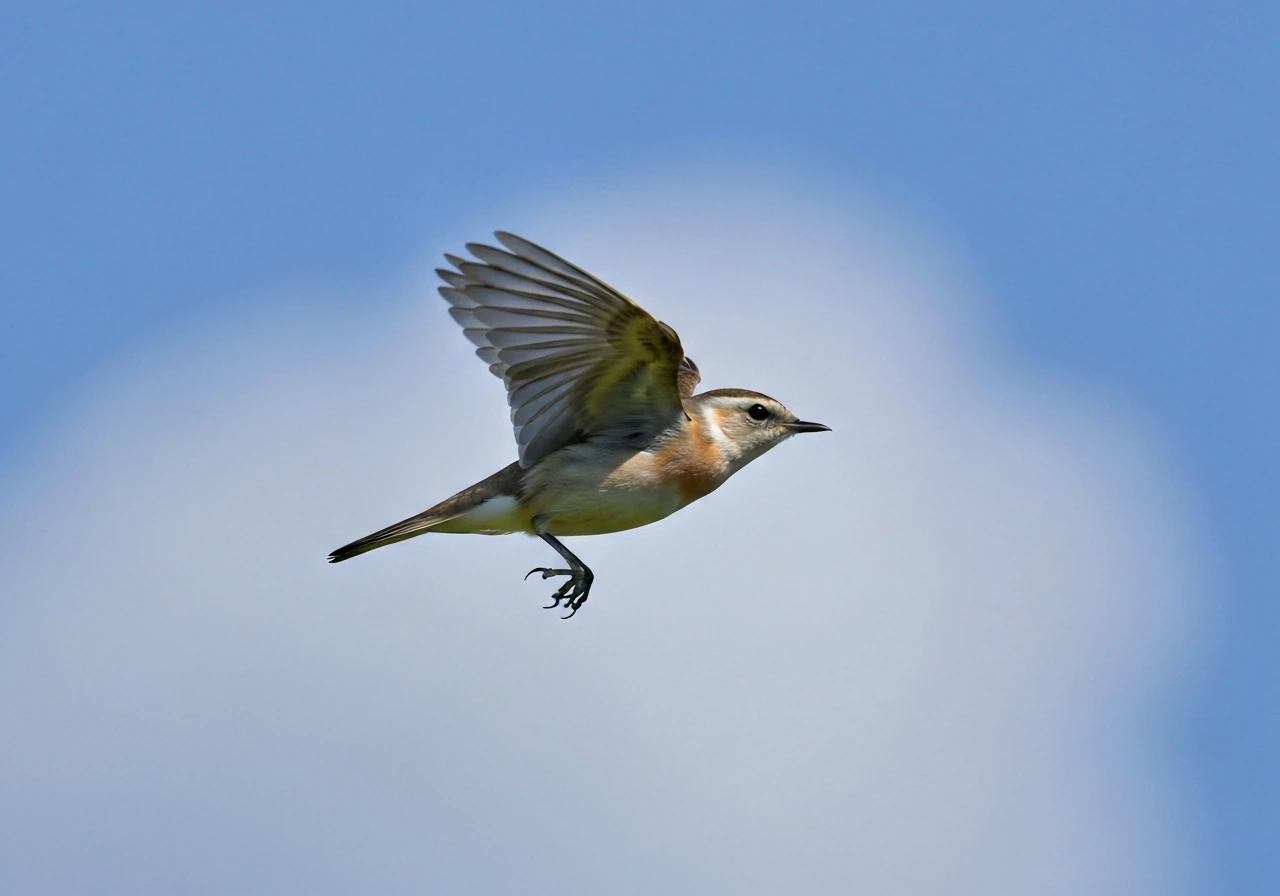
You can put a convincingly realistic flying bird on any web page using nothing but HTML, CSS, and a little JavaScript. Whether you want a simple CSS-only animation that loops endlessly across a lesson page, an SVG with biomechanically labeled wings, or a Canvas-based bird that actually experiences lift and drag before gliding to a landing, every version is within reach in under 100 lines of code. This article walks you through all three approaches, explains the real wing mechanics behind the visuals, and adds a child-friendly science explainer, drawing tutorial, and classroom-ready prose along the way.
Flying Bird HTML Code: CSS, SVG & Canvas Examples
Marcus Chen
30 Jul 2026
What you'll build and who this is for
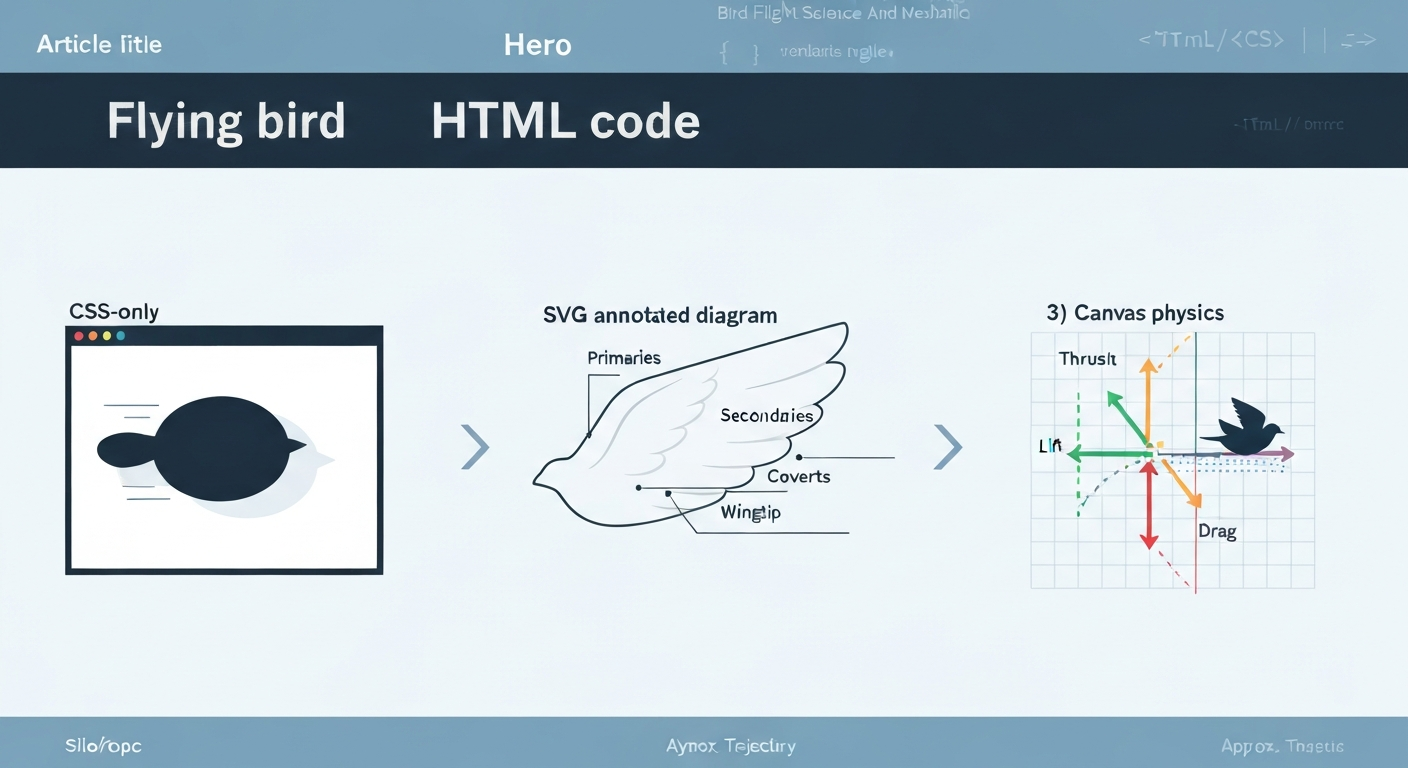
The goal here is threefold. Web authors get publication-quality, copy-paste code they can drop into any page today. Educators get annotated examples tied directly to real avian anatomy, a class-3-friendly explanation of how birds fly, and suggestions for embedding demos inside lessons on Bird Flight Science And Mechanics. Curious learners get the 'why' behind every technique: why a bird's downstroke is faster than its upstroke, why we animate transform instead of left/top, and how the physics of lift maps to real code. By the end you'll have a CSS bird, an SVG bird, and a Canvas bird, each one a little more capable than the last.
Prerequisites and quick setup
You need a text editor, a modern browser (Chrome, Firefox, Edge, or Safari), and a basic comfort with HTML. CSS animations, SVG elements, and the Canvas 2D API are all explained from scratch as they appear. No build tools, no npm, no frameworks. Each example is a single self-contained HTML file you can open directly from your file system. When you're ready to publish, drop the file into your web root or paste the relevant block into your CMS. The three technologies involved each have a specific role: CSS handles declarative looping animation with almost zero runtime cost; SVG gives you scalable, accessible vector shapes you can label and annotate; and Canvas plus JavaScript gives you a live physics simulation that responds to user input.
Which technology to pick
| Approach | Best for | Complexity | Physics | Accessibility effort |
|---|---|---|---|---|
| CSS only | Decorative loops, lightweight pages | Low | None | Minimal (aria-hidden) |
| Inline SVG + CSS/WAAPI | Educational diagrams, wing anatomy labels | Medium | None | Medium (title, desc, aria-labelledby) |
| Canvas + JS | Interactive demos, lift/glide/landing | Higher | Yes (lift, drag, glide) | Requires explicit ARIA + fallback |
Ready-to-use preview and downloadable code bundle
The three examples below are designed to be copied directly. Each one is a complete, valid HTML document. Paste any of them into a file named bird-css.html, bird-svg.html, or bird-canvas.html and open it in your browser. The CSS example is about 60 lines. The SVG example is around 90 lines including all anatomical labels. The Canvas physics example is roughly 160 lines. All three use only standard browser APIs, no external dependencies unless specifically noted. If you want a single bundled download, combine all three into an index.html with tab navigation, keeping each demo in its own <section> element.
Simple CSS animation: a flying bird in pure CSS
The CSS approach relies on two layered keyframe animations: one moves the bird horizontally across the viewport using translateX, and a second toggles the wing shapes to fake a flap. Because both animations touch only transform and opacity, they run entirely on the compositor thread and never trigger layout or paint. This is the single most important performance principle in web animation, touch only those two properties and the browser can hand the work off to the GPU.
Here is a complete, minimal CSS-only flying bird. The bird body is a simple oval span; the two wings are pseudo-elements rotated with scaleY to simulate the downstroke and upstroke:
- Create a container div with position: relative; overflow: hidden; width: 100%; height: 120px.
- Inside it, place a span.bird with position: absolute; width: 40px; height: 14px; background: #222; border-radius: 50%.
- Add: :before and ::after pseudo-elements styled as wings: width: 22px; height: 10px; background: #222; border-radius: 50% 50% 0 0; transform-origin: bottom center.
- Define @keyframes flap { 0%,100% { transform: scaleY(1); } 50% { transform: scaleY(-0.6); } } and apply it to both pseudo-elements with a 0.35s ease-in-out infinite cycle.
- Apply a second @keyframes flyAcross { from { transform: translateX(-60px); } to { transform: translateX(calc(100vw + 60px)); } } to the .bird element with a 6s linear infinite cycle.
- Wrap everything in @media (prefers-reduced-motion: reduce) { .bird, .bird::before, .bird::after { animation: none; } } to respect reduced-motion preferences.
Tuning knobs for the CSS bird
The flap animation duration controls wingbeat frequency. A real passerine like a sparrow beats its wings roughly 13 times per second; a large heron beats at about 2 Hz. Setting the flap duration to 0.077s mimics a sparrow; 0.5s mimics a heron. For a more biologically accurate stroke profile, replace ease-in-out with a custom cubic-bezier that makes the downstroke faster than the upstroke, for example cubic-bezier(0.4, 0, 1, 1) on the down phase and cubic-bezier(0, 0, 0.6, 1) on the up phase, achieved by splitting the keyframe into asymmetric percentage stops (0%, 35%, 100%) rather than the symmetric 0/50/100 split.
Add will-change: transform to .bird and its pseudo-elements, but only to these elements. Applying will-change site-wide is a well-documented anti-pattern because the browser allocates a separate compositing layer for every element that carries it, which increases memory pressure rather than reducing it.
SVG flapping wings with biomechanical labels
SVG is the right tool when you want the animation to double as an educational diagram. An inline SVG bird can carry visible text labels for primary feathers, secondary feathers, covert feathers, and the wingtip, all of which stay crisp at any screen resolution. You can also add a hidden <desc> element that a screen reader will announce, making the diagram genuinely accessible.
The wing anatomy worth labeling in the SVG is the same anatomy that governs a real bird's aerodynamics. Primary feathers (attached to the 'hand' bones, the carpometacarpus and digits) generate thrust and control direction. Secondary feathers (on the forearm, the ulna) generate the majority of lift. Covert feathers are the smaller overlapping feathers that smooth airflow across the wing surface. The wingtip is where the primaries splay during a downstroke, reducing induced drag in the same way winglets work on a commercial jet.
Annotated SVG structure
- Open an <svg> element with role="img" and aria-labelledby="bird-title bird-desc".
- Add <title id="bird-title">Annotated flying bird: wing anatomy</title> and <desc id="bird-desc">An SVG diagram of a bird mid-downstroke, with labeled primary feathers, secondary feathers, covert feathers, and wingtip.</desc>.
- Draw the body as an <ellipse cx="200" cy="150" rx="45" ry="18" fill="#3a3a3a"/>.
- Draw each wing as a <path> approximating a cambered airfoil profile. The left wing outer edge curves downward on the downstroke; the right mirrors it.
- Group feather zones into <g id="primaries">, <g id="secondaries">, and <g id="coverts">, each filled with slightly different shades (#2a2a2a, #444, #555) so they are visually distinct.
- Add <text> labels connected by <line> elements to each group: 'Primary feathers (thrust)', 'Secondary feathers (lift)', 'Covert feathers (airflow smoothing)', 'Wingtip (drag reduction)'.
- Animate the wing paths using CSS keyframes on the transform property of each wing <g>: rotate the upper wing group from 0deg to -30deg (downstroke) and back, with the asymmetric timing described in the CSS section.
- For path morphing (changing the wing curvature shape through the stroke cycle), use the Web Animations API (WAAPI) targeting the d attribute — but test cross-browser, as direct d-attribute animation is not uniformly supported. A safer fallback is to animate transform: rotate and scaleY on the wing groups instead of morphing the path itself.
If you need genuine path morphing for a high-fidelity wing shape change, the flubber JavaScript library provides smooth interpolation between SVG path strings and is MIT-licensed. GSAP's MorphSVG plugin is more powerful but requires verifying current license terms before including it in a published educational package, the free (no-charge) tier covers many use cases but some advanced plugins historically required a paid Club membership.
Physics-based lift, glide, and landing in Canvas
The Canvas version is where the real flight science lives. We model the bird as a point mass with four forces acting on it: weight (gravity pulling down), thrust (from the wingbeat, pointing forward and slightly up), lift (perpendicular to the velocity vector, proportional to velocity squared and a lift coefficient), and drag (opposing velocity, proportional to velocity squared and a drag coefficient). Every frame, we compute the net force, update velocity with Euler integration, and move the bird. This is simplified, real avian flight involves unsteady aerodynamics and flexible wing surfaces, but it produces believable gliding arcs and landing approaches.
The main animation loop must use requestAnimationFrame, not setInterval. The callback receives a DOMHighResTimeStamp parameter; subtract the previous timestamp to get a delta in milliseconds, then scale all physics values by delta/16.67 (one frame at 60 fps) to keep behavior identical at 60, 90, 120, or 144 Hz. Without this, the bird flies twice as fast on a 120 Hz display as on a 60 Hz one.
Core physics variables
| Variable | Typical starting value | What it controls |
|---|---|---|
| mass | 0.05 (arbitrary units) | Inertia; higher = slower acceleration |
| liftCoeff | 0.08 | Lift force per unit velocity²; raise for soaring birds |
| dragCoeff | 0.02 | Air resistance; raise to slow horizontal travel |
| flapThrust | 0.12 per flap | Upward + forward impulse each wingbeat |
| gravity | 0.003 per frame at 60fps | Constant downward acceleration |
| glideAngle | 8 degrees | Descent angle when not flapping (mimics a red-tailed hawk glide ratio of ~10:1) |
For high-DPI (Retina) displays, multiply canvas.width and canvas.height by window.devicePixelRatio, then scale the context with ctx.scale(dpr, dpr) before drawing. Set the canvas CSS size to the logical size. This prevents the blurry canvas that is one of the most common complaints about Canvas on modern screens.
For even more performance on complex simulations, OffscreenCanvas allows you to move the rendering work into a Web Worker via canvas.transferControlToOffscreen(). This is well-supported in Chromium-based browsers and modern Firefox but has partial support elsewhere, so feature-detect before using it: if ('OffscreenCanvas' in window) { / use worker / } else { / fall back to main thread / }.
Interactive controls: automatic flight vs manual hand control
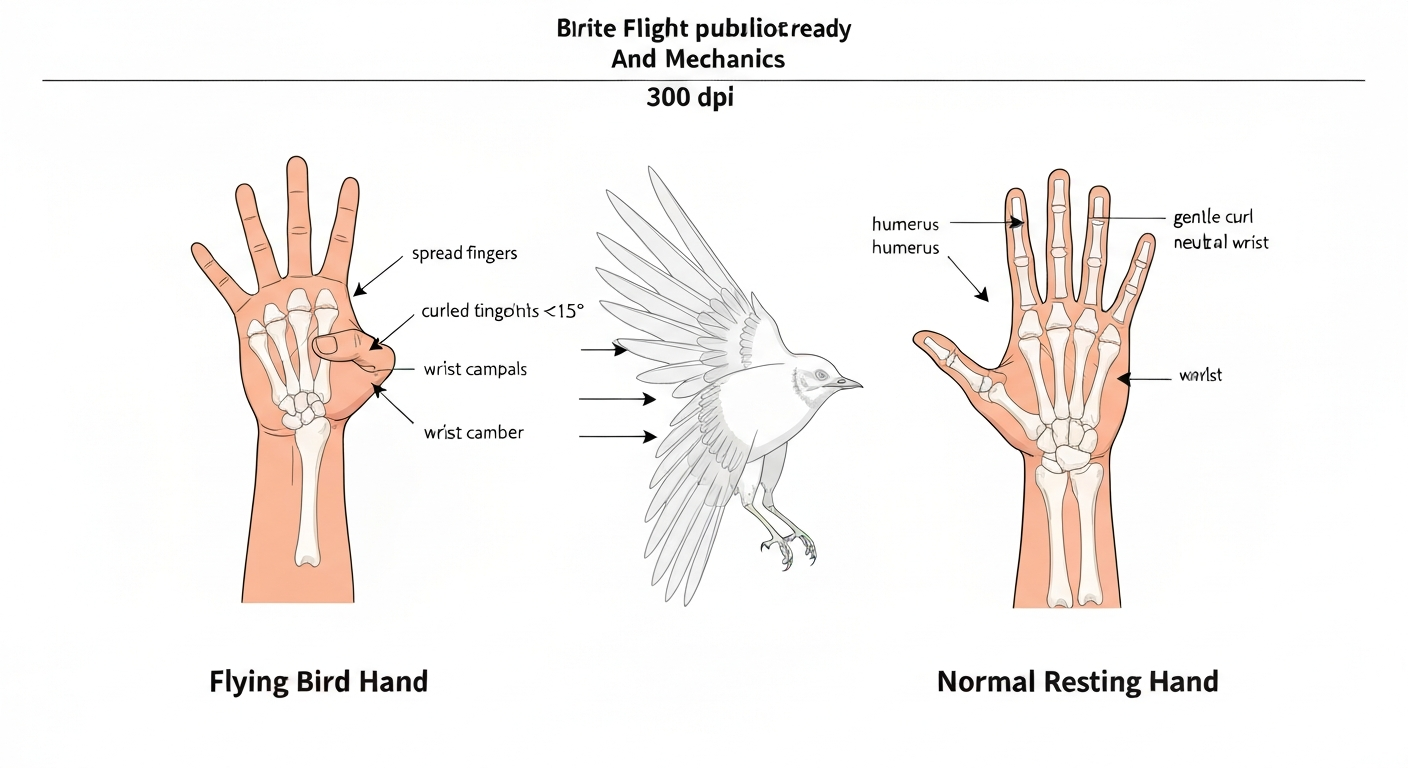
The Canvas bird supports two modes. In automatic mode, the bird follows a pre-computed flight path, a sine-wave altitude oscillation over time with occasional glide segments, and needs no user input. In hand-control mode (inspired by the concept of a bird in hand versus one in the air, which connects naturally to the biomechanical distinction between hand-bones and arm-bones in a bird's wing), the user steers the bird directly. See the comparison flying bird hand vs normal for a clear explanation of how hand-control differs from normal automatic flight. The terminology 'hand' here maps to real anatomy: the outer wing, built from fused hand bones, is the primary thrust generator, so 'hand control' literally means controlling the part of the wing that the bird uses for fine-directional adjustments.
Input bindings
| Input | Action | Mode |
|---|---|---|
| ArrowUp / W | Apply upward flapThrust impulse | Hand control |
| ArrowLeft / ArrowRight | Adjust horizontal velocity ±0.5 units | Hand control |
| Space | Toggle flap (hold to flap continuously) | Hand control |
| A key | Switch to automatic mode | Both |
| M key | Switch to manual/hand mode | Both |
| Touch swipe up | Apply flapThrust impulse | Hand control (mobile) |
| Mouse drag up | Apply flapThrust proportional to drag distance | Hand control (desktop) |
Expose the mode-switch as a pair of <button> elements: 'Automatic' and 'Manual (Hand Control)'. Mark the active one with aria-pressed="true" and the inactive with aria-pressed="false". This gives keyboard users a clear toggle and gives screen readers audible state feedback. Never implement buttons as div or span elements; native button elements get keyboard focus, Enter/Space activation, and ARIA roles for free.
Landing trigger and collision handling
When the bird's y-coordinate (plus half its body height) reaches the ground line, it transitions from flight to a landing animation. In the real world, a bird approaching solid ground extends its legs, pitches its body upright, fans its tail to increase drag, and cups its wings to brake. We model this in three phases: approach (bird slows horizontal speed by 40% over 0.5 seconds), flare (bird's nose pitches up 25 degrees, wingbeat stops, lift briefly increases to near-stall), and touchdown (vertical velocity zeroes, a dust-puff particle effect fires, and the bird shifts to a standing pose).
Edge cases matter here. If the ground surface is an obstacle (a branch, a ledge narrower than the bird's foot span), the landing should abort and the bird should pull up. Test bird.x against the obstacle bounding box before committing to the landing sequence. If the bird is moving too fast horizontally (velocity.x > 2.5 arbitrary units) when it hits the ground, skip the gentle touchdown and play a stumble animation instead, faster landings are harder, as any bird watcher who has watched a gannet crash-land on a cliff can confirm. The idea that the bird must 'see' the solid ground before committing connects to a broader behavioral concept worth exploring in lessons about how birds anticipate and react to terrain. See the related note on sensory-triggered landings when the bird sees the solid ground.
Landing state machine
- FLYING: normal physics update, full lift and drag active.
- APPROACH: triggered when bird.y > groundY - 80px and velocity.y > 0; begin speed reduction.
- FLARE: triggered when bird.y > groundY - 30px; pitch up, stop flapping, wings cup.
- TOUCHDOWN: triggered when bird.y >= groundY; zero vertical velocity, play landing animation.
- LANDED: idle standing pose, wait for user input or auto-relaunch timer.
- ABORT_LANDING: triggered by obstacle detection or high horizontal velocity; apply upward thrust and return to FLYING.
Responsive design and performance optimizations
Canvas elements don't resize automatically the way CSS elements do. Listen for the resize event (debounced by 150ms), re-read window.innerWidth and window.innerHeight, update canvas.width and canvas.height (multiplied by devicePixelRatio), and call ctx.scale(dpr, dpr) again. Store the bird's position as a fraction of canvas width (bird.xFraction = bird.x / canvas.width) before the resize, then restore it as bird.x = bird.xFraction * newWidth after, so the bird doesn't teleport to a corner when the user rotates their phone.
On low-power devices, cap the physics update frequency by checking if delta exceeds 50ms (three missed frames at 60fps) and clamping it to 50ms. This prevents the bird from teleporting across the screen after a tab switch or a GC pause. requestAnimationFrame automatically pauses in background tabs, which saves battery and CPU, another reason to prefer it over setInterval for any animation loop.
For the CSS and SVG examples, add contain: strict to their container elements. This tells the browser the element is visually self-contained, allowing it to skip layout/paint outside the container when the animation runs. On a page with lots of DOM, this alone can cut repaint cost significantly.
Accessibility and semantic considerations
The WCAG Success Criterion 2.2.2 (Pause, Stop, Hide) requires that any animation lasting more than 5 seconds and not essential to the content must be pausable. W3C's How to Meet WCAG (Quickref Reference), W3C notes authors should respect the user's prefers-reduced-motion setting and provide a mechanism to pause, stop, or hide non-essential motion (WCAG Pause, Stop, Hide and reduced-motion guidance) How to Meet WCAG (Quickref Reference) — W3C. Provide a clearly labeled pause/play button above or adjacent to every flying bird demo. Mark its state with aria-pressed. For the reduced-motion preference, check both CSS and JavaScript:
- In CSS: @media (prefers-reduced-motion: reduce) { .bird, .bird::before, .bird::after { animation-duration: 0.001ms; animation-iteration-count: 1; } }
- In JavaScript: const prefersReduced = window.matchMedia('(prefers-reduced-motion: reduce)').matches; and skip the rAF loop or set a very slow flapThrust cadence if true.
- Listen for changes: window.matchMedia('(prefers-reduced-motion: reduce)').addEventListener('change', handler) so the demo responds if the user changes their OS setting while the page is open.
For inline SVG diagrams, use role="img" on the <svg> element and aria-labelledby pointing to both a <title> (short name) and a <desc> (longer description). See the ACT Rules guidance: SVG element with explicit role has non-empty accessible name | ACT Rules (W3C). For purely decorative CSS birds (a background swoosh on a hero section, for example), add aria-hidden="true" and focusable="false" to prevent screen readers from announcing meaningless shape data. Canvas elements need a text alternative inside the element: <canvas>A bird in flight animation. Use the Pause button to stop it.</canvas> as fallback content.
How to draw a flying bird: a step-by-step guide
This drawing sequence works on paper or as SVG path instructions for a child-friendly class activity. For a clear step-by-step visual guide on how to draw a bird flying in the air, see the matching drawing tutorial. The shapes are simple enough for a class 3 student (ages 8-9) and map directly to the SVG structure described above, making it a natural bridge between art and science lessons.
- Draw a small oval for the body, wider on the left (the tail end) and pointed on the right (the beak end).
- Add a tiny triangle beak on the right side of the oval, pointing right.
- Draw a small circle for the eye, just behind the beak.
- From the top of the body, draw a long curved line sweeping upward and then curving back down — this is the top edge of the left wing. Curve it like a gentle hill.
- From the same starting point, draw another line underneath the first that curves down more sharply — this is the bottom edge of the wing.
- Connect the two lines at the wingtip with a slightly rounded point.
- Inside the wing, draw three or four short curved lines fanning out from the body toward the wingtip to suggest individual feathers.
- Mirror the wing shape on the right side of the body, slightly smaller (the far wing appears smaller because of perspective).
- Add a small forked or fan-shaped tail at the left end of the body.
- Erase the part of the oval hidden behind the wings and you have a flying bird viewed from slightly below.
In SVG terms, each wing is a single <path> with one cubic bezier curve for the top edge and one for the bottom edge, closed at the wingtip. The feather lines are simple <line> elements. The whole bird fits inside a 200x120 SVG viewport.
How does a bird fly? A class 3 explanation
Birds fly because of four forces working together: lift, thrust, weight, and drag. Lift is the upward push that keeps the bird in the air. When a bird moves forward, air flows faster over the curved top of its wing than under the flatter bottom. Faster air means lower pressure, and lower pressure above the wing 'pulls' the bird upward, this is called the Bernoulli effect, though the full picture also involves the wing pushing air downward (Newton's third law) so the air pushes the bird up in return. For a child-friendly summary, see how does a bird fly class 3.
Thrust comes from flapping. The downstroke is the powerful one: the wing sweeps down and slightly forward, pushing air backward, which pushes the bird forward and upward. The upstroke is faster and the wing partially folds to reduce air resistance, like pulling your hand back quickly through water with fingers slightly spread. Weight is simply gravity pulling the bird down, which lift must overcome. Drag is air pushing back against the bird's forward movement, which thrust must overcome. A bird gliding with wings spread and no flapping is trading height for speed, using gravity as its engine. A bird soaring in a thermal is riding a rising column of warm air that replaces the height it would otherwise lose.
Phrases and descriptive language for writing about a bird in flight
These ready-to-use phrases work as image captions, lesson text introductions, or picture descriptions for educational materials. They range from purely observational to gently poetic, all grounded in accurate visual detail.
- Wings arched, the bird hangs on a thermal, barely moving a feather.
- Each downstroke is a controlled fall forward: the wing scoops air and the bird climbs.
- The wingtips splay like open fingers, each primary feather angled to spill just enough air to kill the drag at the tip.
- Between flaps, the wings lock into a shallow V and the bird sails — a glider borrowing momentum from the last beat.
- The tail fans wide as the bird brakes, landing gear dropping in the last half-second before touchdown.
- Shadow and bird arrive at the branch together.
- The upstroke is nearly silent; it's the downstroke that cuts the air with a soft whomp.
- Seen from below, the wing is a crescent of pale secondary feathers bordered by the dark slats of the primaries.
- The bird tilts one wing down and curves without effort, geometry replacing muscle.
- At full soaring spread, a red-tailed hawk's wing is as long as a child's arm is wide — all of it working.
Embedding these demos into Bird Flight Science And Mechanics lessons
The CSS bird works as a passive illustration on any introductory page about how birds fly. Drop it into the hero section of a page explaining lift and drag, and let it loop behind or beside the opening paragraph. The SVG annotated diagram is best placed inside a dedicated anatomy section where students can read the labels alongside prose descriptions of primary versus secondary feathers. The Canvas physics demo belongs on an interactive activity page where students can adjust the lift coefficient slider and observe how the bird's glide path changes, a direct, hands-on connection between a variable in the code and a variable in real aerodynamics.
Lesson plan and assessment ideas
- Ask students to identify which CSS property moves the bird horizontally and predict what would happen if you changed it to left instead of translateX (expected answer: the animation will be jerkier because left triggers layout).
- Have students change the liftCoeff value in the Canvas demo from 0.08 to 0.03 and describe what they observe — connecting the code change to the concept of a less aerodynamically efficient wing.
- Use the SVG diagram as a labeling exercise: print it, remove the text labels, and ask students to fill them in using their reading notes.
- For a writing exercise, ask students to use three phrases from the descriptive language list in a short paragraph describing a bird they have watched.
- For older students, have them research one real species (a barn swallow, a wandering albatross, a common swift) and modify the Canvas physics constants to match that species' published wingbeat frequency and glide ratio.
Customization and tuning guide
Every parameter in these examples is a single variable or CSS custom property (--flap-duration: 0.35s) waiting to be changed. Here is how the key variables map across the three implementations:
| Parameter | CSS | SVG (WAAPI) | Canvas + JS |
|---|---|---|---|
| Wingbeat speed | --flap-duration value | animation.effect.updateTiming({ duration: ms }) | flapInterval variable (ms) |
| Bird color | background on .bird / fill on paths | fill attribute on wing/body groups | ctx.fillStyle in draw() |
| Horizontal speed | --fly-duration value | translateX animation duration | velocity.x initial value |
| Lift force | N/A | N/A | liftCoeff * velocity² |
| Wing span | width on ::before/::after | rx/ry on wing ellipse or path scale | wingSpan variable (pixels) |
| Ground height | N/A | N/A | groundY = canvas.height - 30 |
To convert a CSS bird into an SVG bird, trace the CSS pseudo-element shapes as SVG <ellipse> and <path> elements and port the keyframe percentages to a WAAPI KeyframeEffect object. The timing values translate directly: a CSS animation-duration: 0.35s becomes duration: 350 in WAAPI. To move from SVG to Canvas, calculate the bounding box of each SVG path and replicate the shape with ctx.beginPath(), ctx.bezierCurveTo() calls. The physics layer then layers on top of the drawing, updating x and y before each ctx.clearRect() / redraw cycle.
Testing, debugging, and cross-device checks
Open Chrome DevTools, go to the Animations panel (More tools > Animations), and play back the CSS and SVG animations at 25% speed to inspect individual keyframes. The Performance panel's Layers view will confirm that your .bird element is on its own compositing layer (look for a green layer highlight). If you see a yellow 'Forced reflow' warning in the flame chart, a property other than transform or opacity is being animated, fix it.
For the Canvas physics, add a debug overlay: draw the velocity vector, the lift force arrow, and a bounding box around the bird in a contrasting color when a ?debug=1 URL parameter is present. This makes it trivially easy to verify that lift is actually being applied in the right direction and that the landing trigger fires at the correct y value.
- Test the reduced-motion behavior by toggling 'Emulate prefers-reduced-motion' in DevTools Rendering panel.
- Test on a real 120 Hz device (or use Chrome's frame-rate throttle) to verify the delta-time physics scaling is correct.
- Test touch input on a physical Android or iOS device — synthetic touch events from DevTools don't reproduce all gesture behaviors.
- Run keyboard-only navigation through all interactive controls to confirm no focus trap exists and all buttons activate on Enter and Space.
- Verify screen reader announcements with NVDA (Windows) or VoiceOver (macOS/iOS): the SVG <title> should be read when the element receives focus, and aria-pressed state changes should be announced on the control buttons.
- Check OffscreenCanvas availability with 'OffscreenCanvas' in window before enabling the worker-based path.
Licensing, assets, and distribution
All three code examples in this article use only standard browser APIs and are offered under the MIT License: include the license text in a comment at the top of each file and anyone can use, modify, and distribute them freely, including for classroom use. If you incorporate a third-party library (flubber for path morphing, GSAP for timeline control), check its license separately. Flubber is MIT-licensed as of its last release. GSAP's core is free for most uses but some commercial use scenarios and some advanced plugins require verifying current terms at the GSAP website before bundling.
When packaging examples for students or colleagues, bundle each demo as a single self-contained HTML file with all CSS and JavaScript inlined. This eliminates file-path issues when the file is opened from a local desktop, emailed, or dropped into an LMS file repository. Name files descriptively: bird-css-animation.html, bird-svg-anatomy.html, bird-canvas-physics.html. Include a plain-text README.txt in the same folder covering the license, the list of files, and a one-sentence description of what each file demonstrates.
Experiment ideas and next steps
Once your single bird works, the natural next experiments are flock simulations (Craig Reynolds's boids algorithm from 1987 remains the standard reference: each boid follows three rules, separation, alignment, cohesion, and emergent flocking appears from nothing more complex than that), predator-prey interactions (add a hawk that locks onto the nearest small bird and watch the flock scatter), and migration path simulation (give each bird a target latitude and a wind vector, then watch them drift and compensate). All of these build directly on the Canvas physics foundation in this article.
On the educational side, the SVG anatomy diagram could grow into a fully interactive clickable wing where tapping a feather zone opens a pop-up explaining that zone's aerodynamic role. The CSS bird could gain a species-selector dropdown that changes wingbeat speed, body shape, and color to approximate a sparrow, a pelican, or an albatross. The drawing tutorial connects to lessons on how to describe a bird flying, giving students the vocabulary to match what they have just drawn on paper or constructed in code. All of these extensions keep the science at the center, with the code as the tool that makes the science tangible.
FAQ
What technical and performance best practices should I follow to build publication‑quality flying bird examples in HTML/CSS/SVG/Canvas?
Prioritize compositor-friendly animations: animate transform and opacity only, avoid layout/paint properties (width/left/top/margin) to prevent jank. Use will-change sparingly as a rendering hint. For JS-driven visuals and Canvas, use requestAnimationFrame with the timestamp/delta to make motion frame‑rate independent and pause in background tabs. When offloading work, consider OffscreenCanvas in a Web Worker but feature‑detect and guard against partial browser support. For programmatic control of compositor animations consider the Web Animations API for precise timeline control. Test on multiple refresh rates and devices to ensure consistent cadence.
How should I structure CSS and SVG animations to convincingly model wingbeats (fast downstroke, slower upstroke)?
Use asymmetric keyframes or carefully tuned easing (cubic‑bezier) to model the quick downstroke and slower recovery. For CSS-only or inline SVG transform animations, animate group transforms (rotate/translate) on composited properties. If you need timeline control (pause, reverse, playbackRate), expose the animation through WAAPI rather than raw CSS for more predictable programmatic control. Keep the number of simultaneous animations low and use prefers‑reduced‑motion rules to disable or simplify motion.
When should I use SVG vs Canvas vs CSS for different parts of the example?
Use inline SVG for vector bird artwork, annotated anatomical labels, and semantic structure (accessible <title>/<desc>)—SVG provides crisp scaling and element-level interactivity. Use CSS keyframes or WAAPI to animate transforms/opacity on SVG parts. Use Canvas + JS for physics‑based flight simulations (continuous particle/trajectory math, fluid-like motion, many particles) where per-frame drawing is required; drive Canvas updates with requestAnimationFrame. Use CSS animations for simple decorative flying or UI-level transitions (low complexity, composited transforms). Hybrid patterns work well: SVG artwork for visuals + Canvas for trails/physics, coordinating both via JS.
What physics concepts are essential to implement lift, glide, and landing in a Canvas+JS simulation?
Model time‑stepped motion using requestAnimationFrame with a stable delta. Compute forces: thrust/wing lift (function of airspeed, wing angle/beat phase), weight (gravity), drag (proportional to velocity), and buoyant/glide effects (lift-to-drag ratio). Use simplified biomechanical parameters: wingbeat frequency/amplitude, wing area, and angle of attack to modulate lift during downstroke vs upstroke. Implement collision detection for ground/obstacle approach and a smooth landing trigger that reduces airspeed, flattens wingbeat, and transitions to a perching or walking state.
How do I implement manual (hand) vs automatic flight control modes and their UI/UX?
Expose clear native controls: Play/Pause, Mode Toggle (Automatic/Manual), Reset, and optionally speed/playbackRate. In Automatic mode, run the physics/animation loop with autonomous steering and obstacle responses. In Manual mode, accept keyboard (arrow keys), mouse/touch drag, or on-screen joystick controls; ensure controls are accessible (<button> elements, proper labels, keyboard events). Reflect mode state with aria-pressed or aria-live updates and provide a visual focus indicator. Provide smooth blending when switching modes to avoid abrupt state jumps (interpolate velocity/angle).
What accessibility requirements and patterns must the demo follow?
Provide accessible names for graphical content: inline SVG should include <title> and optional <desc> referenced by aria-labelledby or use role="img" and aria-label. Mark decorative SVGs aria-hidden="true". Respect prefers-reduced-motion: check window.matchMedia('(prefers-reduced-motion: reduce)') and provide a site toggle to pause/disable motion. Use semantic controls (<button>), ensure keyboard operability (Enter/Space, arrow keys), expose state via aria-pressed/aria-live, and avoid trapping focus. Provide text alternatives and short descriptive captions for users of assistive tech.